Redmine Access Guide
This guide provides detailed information about accessing and using the CCI xG Testbed Redmine project management system.
What is Redmine?
Redmine is a flexible project management and issue tracking system used by the CCI xG Testbed to:
Track experiment progress
Report and resolve technical issues
Collaborate with team members and testbed administrators
Access documentation and knowledge base articles
Manage project timelines and milestones
Accessing Redmine
After your account request is approved, you will receive Redmine credentials via email. These credentials include:
Username: Your assigned Redmine username
Password: Your initial Redmine password
To access Redmine:
Open your web browser
Navigate to the Redmine URL: Link
Enter your username and password
Click “Login”
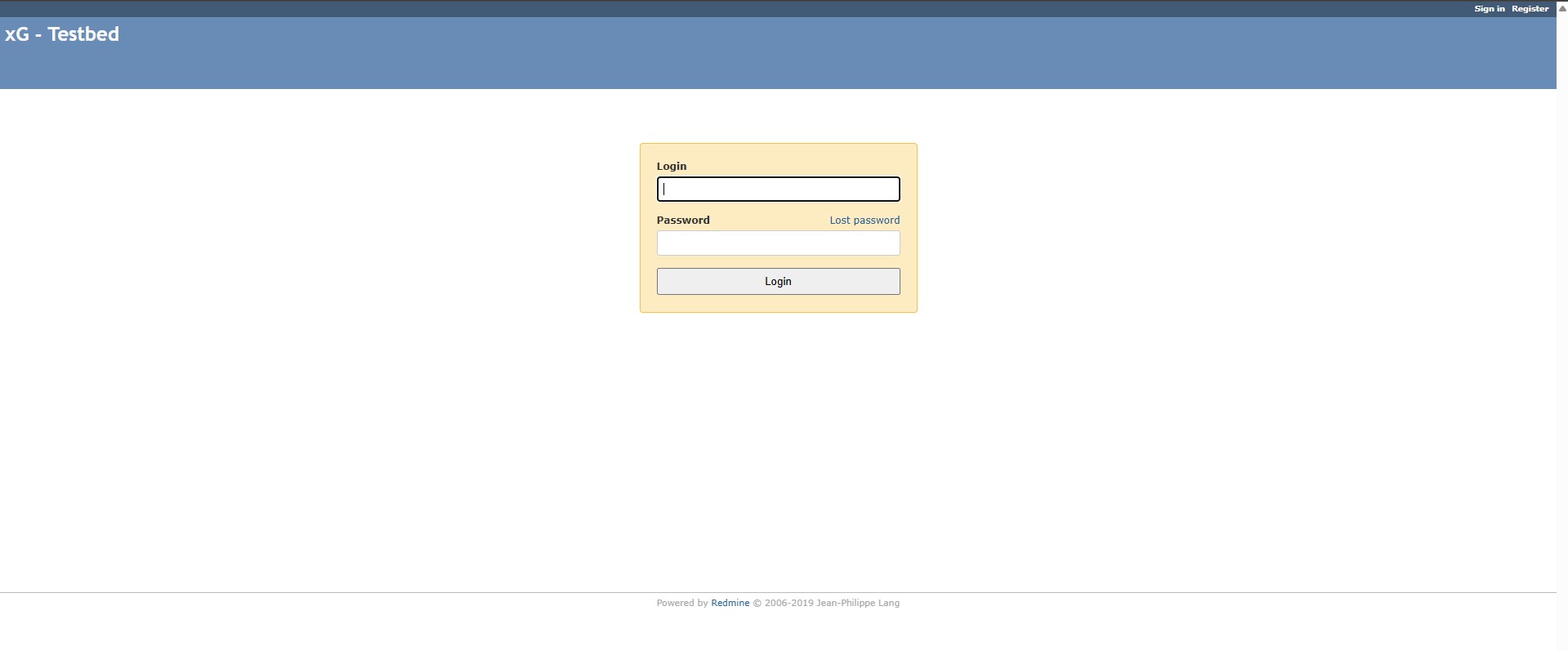
Figure: Redmine login page
Note
Upon first login, you may be prompted to change your password. Choose a strong, unique password that you don’t use for other services.
Getting Started with Redmine
Dashboard Overview
After logging in, you’ll see the Redmine dashboard which provides:
My page: A personalized view of your assigned issues and activities
Projects: List of projects you have access to
Issues: All issues across projects you can view
Help: Documentation on using Redmine
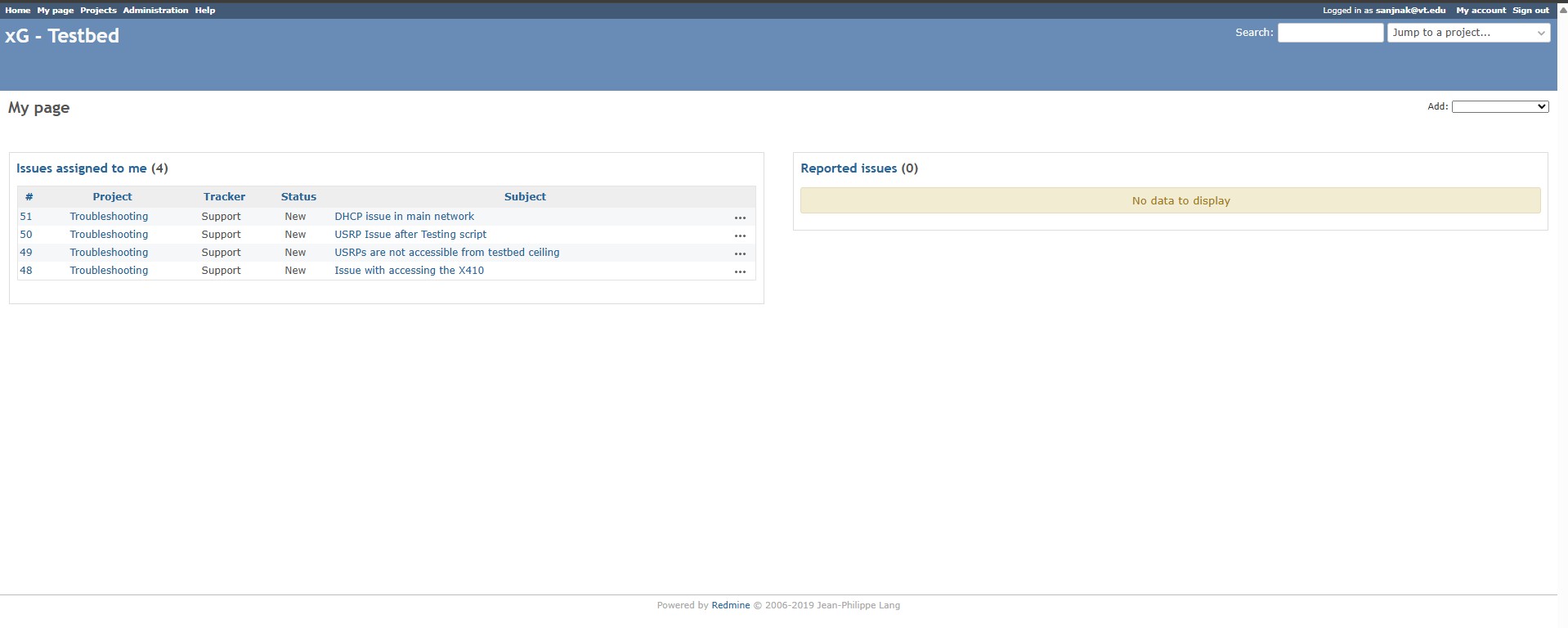
Figure: Redmine dashboard overview
Navigating Projects
Click on the “Projects” tab to see all available projects
Select a project to view its details
Each project has several tabs:
Overview: General project information
Activity: Recent actions in the project
Issues: List of all issues in the project
Wiki: Project documentation
Settings: Project configuration (for administrators)
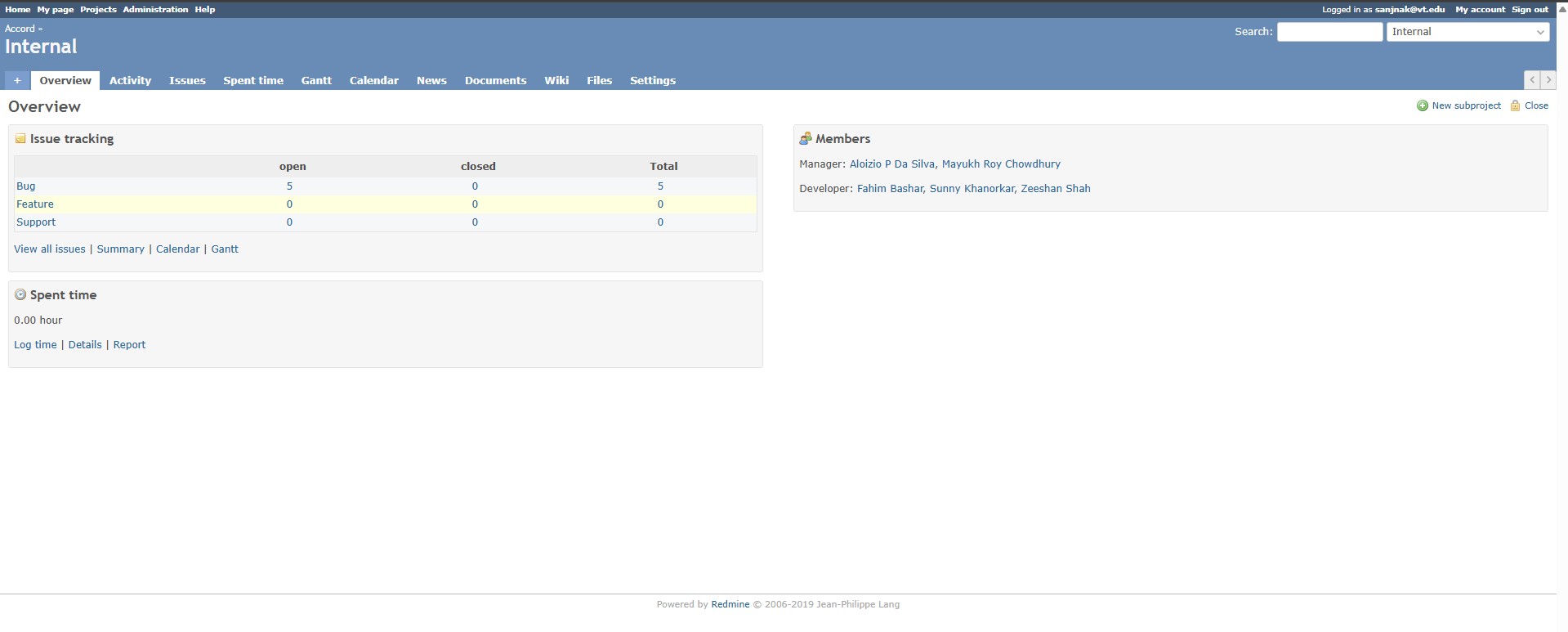
Figure: Redmine projects page
Working with Issues
Searching for Existing Issues
Before creating a new issue, it’s best practice to search for existing issues that might address your concern:
Navigate to the “Issues” section
Use the search box to enter keywords related to your issue
Apply filters to narrow down results:
Status (open, closed, in progress)
Priority
Assignee
Date ranges
Review matching issues to see if your concern has already been addressed
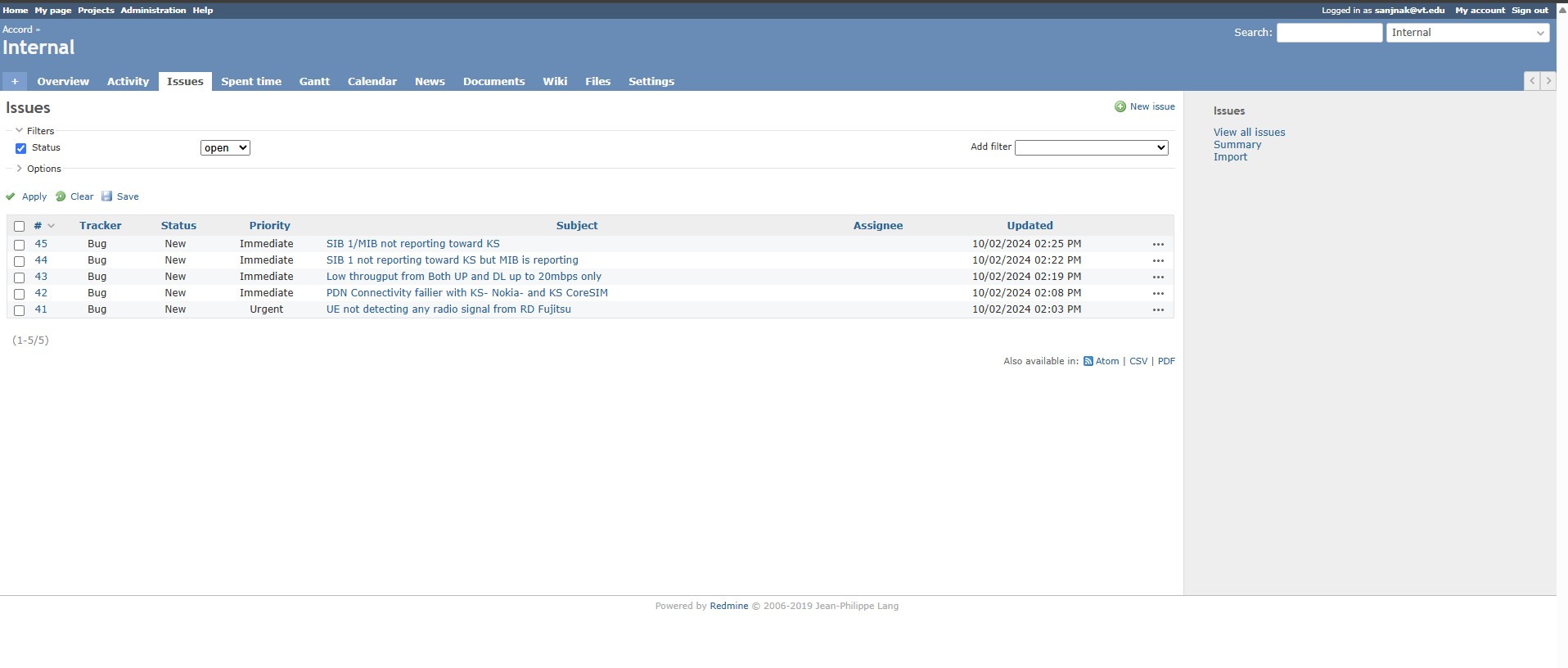
Figure: Redmine issue search interface
Creating New Issues
If you don’t find an existing issue that matches your needs:
Navigate to your project
Click “New issue”
Fill in the required fields:
Subject: A brief, descriptive title
Description: Detailed information about the issue
Priority: The importance of the issue (Normal, High, Urgent)
Assignee: Who should work on this issue (leave blank if unsure)
Category: The type of issue (Bug, Feature, Support)
Target version: When this should be addressed (if applicable)
Add attachments if needed (screenshots, logs, etc.)
Click “Create” to submit the issue
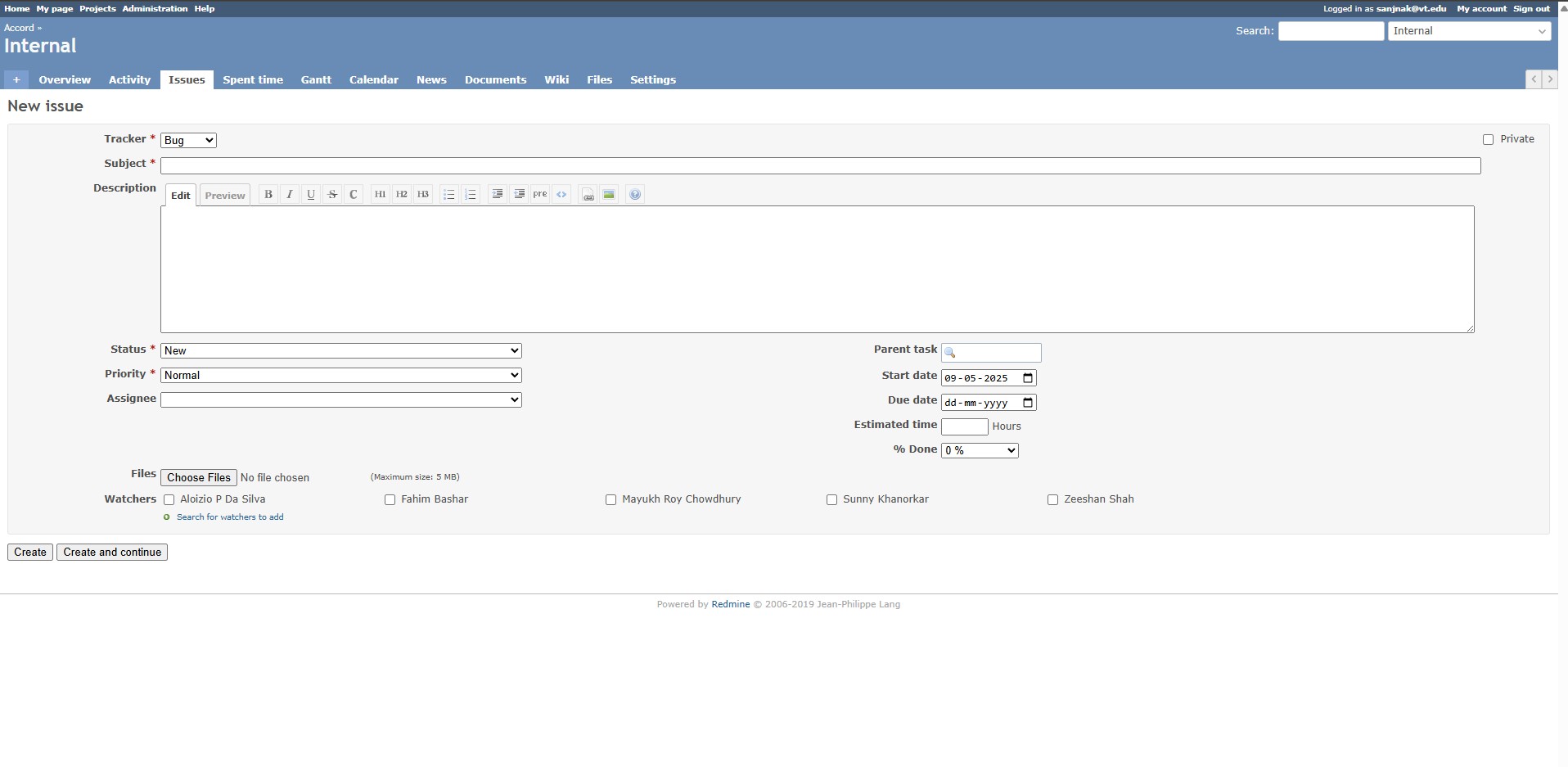
Figure: Redmine new issue creation form
Tracking and Updating Issues
Once an issue is created:
You’ll receive notifications about updates (based on your notification settings)
You can add comments to provide additional information
Update the status as the issue progresses:
New: Just created
In Progress: Being worked on
Resolved: Solution implemented
Feedback: Needs input from reporter
Closed: Completed and verified
Add time tracking information if required
Figure: Redmine issue tracking interface
Creating and Managing Documentation
Redmine’s Wiki Feature
Each project has a wiki section for documentation:
Navigate to the “Wiki” tab in your project
Click “Edit” on an existing page or create a new page
Use the rich text editor or Textile/Markdown syntax to format your content
Add images, tables, and links as needed
Save your changes with a brief description of what was updated
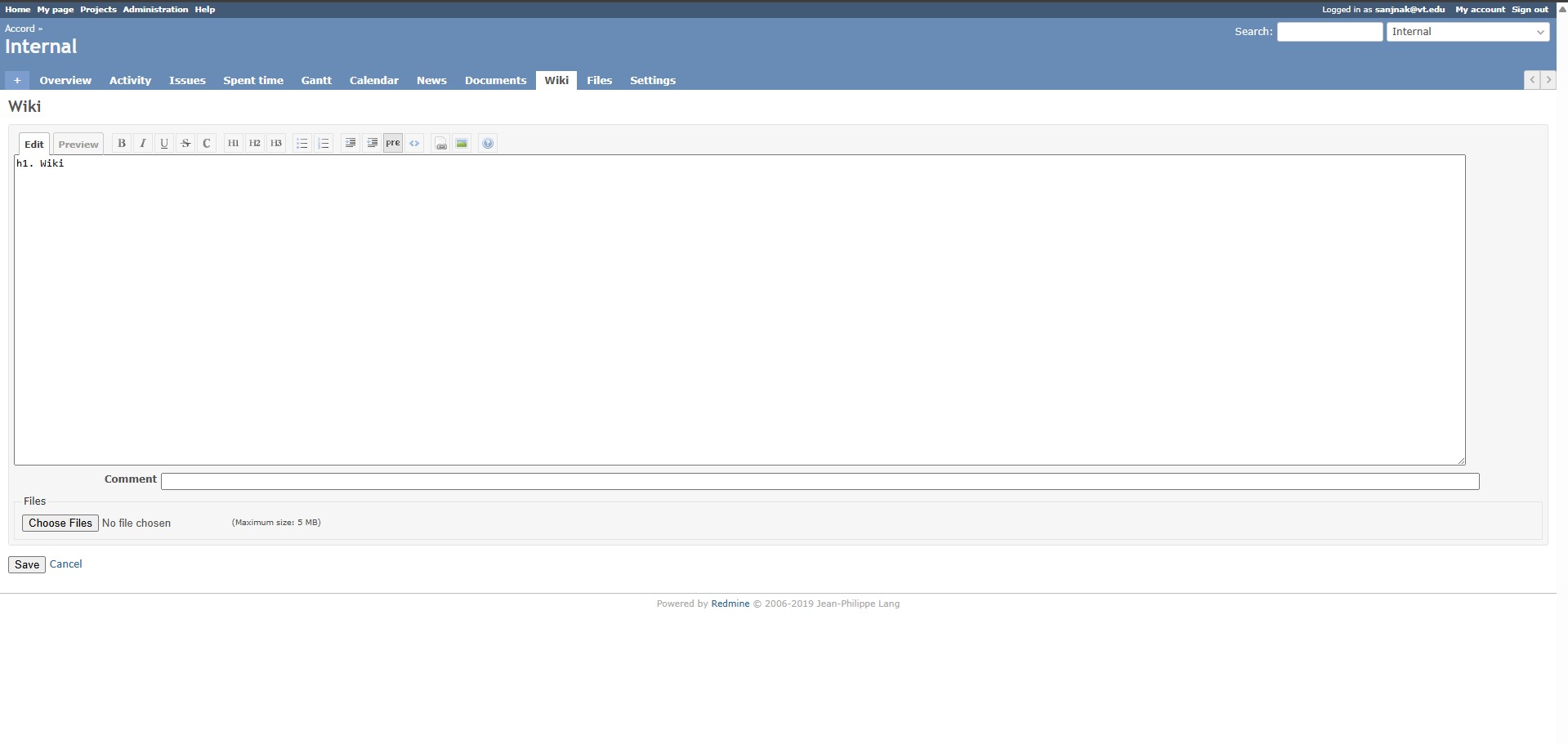
Figure: Redmine Wiki editing interface
Documentation Best Practices
Structure documentation with clear headings and subheadings
Include step-by-step instructions where appropriate
Add screenshots or diagrams to illustrate complex procedures
Link related wiki pages and issues for cross-reference
Regularly update documentation as procedures change
Collaboration Features
Redmine offers several ways to collaborate with team members:
Issue comments: Discuss specific issues
Wiki discussions: Collaborate on documentation
File sharing: Upload and share relevant files
News: Post project announcements
Forums: Discuss broader topics (if enabled)
User Profile and Preferences
Customize your Redmine experience:
Click on your username in the top-right corner
Select “My account”
Update your:
Personal information
Password
Email notification preferences
UI theme and display options
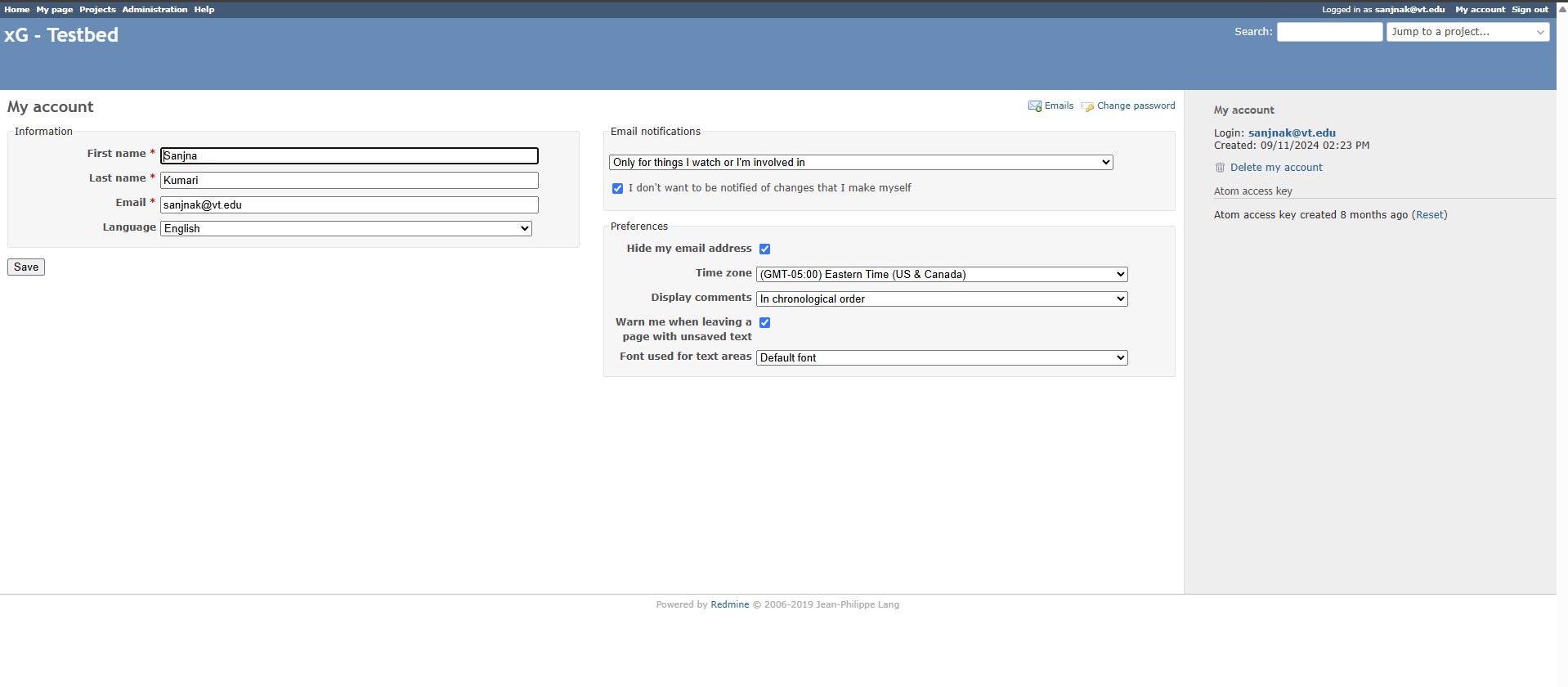
Figure: Redmine user profile settings page
Flow Diagram of Redmine Functionality
The following diagram illustrates the typical workflow for using Redmine:
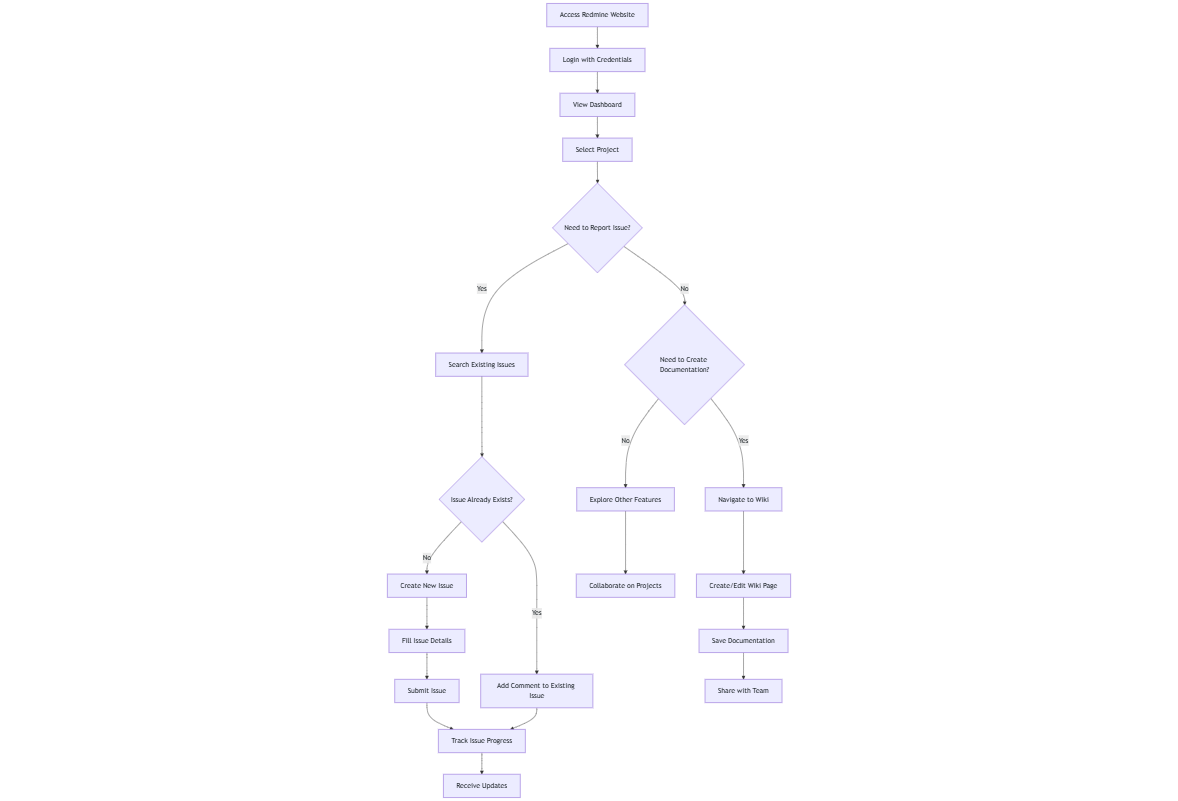
Figure: Redmine User-Flow
Best Practices for Using Redmine
Check Redmine regularly for updates on your issues
Keep issue descriptions clear and concise
Use appropriate issue categories and priorities
Update issue statuses as they progress
Include relevant attachments and screenshots when reporting problems
Subscribe to notifications for issues you’re interested in
Contribute to documentation to help other users
Getting Support
If you encounter difficulties using Redmine:
Check the Redmine help documentation
Create a support issue in the appropriate project
Contact the CCI xG Testbed support team via email at the address provided in your welcome message
Note
For additional assistance with Redmine, please contact the CCI xG Testbed support team through Redmine or via email at the address provided in your welcome message.