End-to-end 4G LTE with srsRAN
Overview
This tutorial details the experimental setup and procedures for establishing a 4G LTE network using srsRAN and Ettus X310 USRPs. It covers the complete process from VM creation to network verification, including connecting a commercial off-the-shelf (COTS) UE to the network.
Note: Before deploying the experiment, ensure you have proper access to the testbed (e.g., SSH access to the gateway node and virtual machines).
Objective
Set Up a 4G LTE Network: Deploy and configure a 4G LTE network using srsRAN and Ettus X310 USRPs.
Integrate a COTS UE: Connect a mobile phone or dedicated 4G device to the experimental network.
Performance Verification: Validate network operation via performance tests and monitor outputs for troubleshooting.
Understand 4G LTE Architecture: Gain practical knowledge of 4G LTE network components and their interactions.
Resources
- Hardware:
Personal Computer (Host machine)
Two Ettus X310 USRPs
Two virtual machines running Ubuntu associated with those USRPs
USB Hub
Sysmocom USIM
4G-compatible smartphone (e.g., Samsung Galaxy S20)
Omnikey SIM Reader
- Software:
Ubuntu 20.04 OS (on host and VMs)
srsRAN 4G Software Suite
UHD (USRP Hardware Driver, version 3.15.00)
iPerf (for network performance testing)
pcsc-tools and pcscd (for SIM detection)
Testbed Access Requirement
Important: Before deploying any experiment, ensure:
SSH connectivity to the gateway node.
Verified access to all required VMs (VM-1 and VM-2).
Confirmation that the USRPs are visible (e.g., via
uhd_find_devices).Proper network configuration between VMs.
Sufficient permissions to install and configure software.
Setup Process Flow
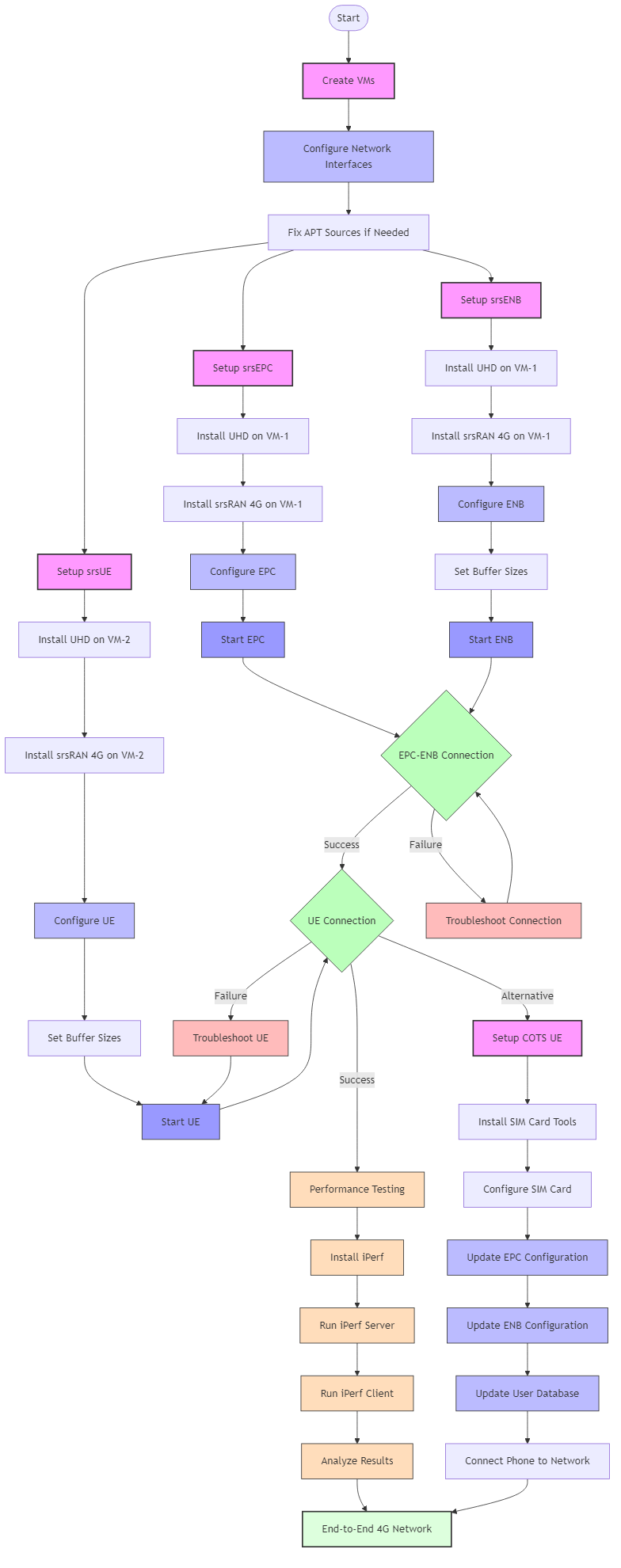
Note
The diagram above provides a high-level overview of the 4G LTE setup process, showing VM creation, network configuration, component installation, connection verification, and performance testing with iPerf.
Below is a simplified overview of the setup process:
Create VMs for EPC, ENB, and UE
Set up srsEPC (install UHD, srsRAN 4G)
Set up srsENB (install UHD, srsRAN 4G)
Set up srsUE (similar to ENB setup)
Configure all components with proper parameters
Start EPC and ENB services, verify connection
Start UE and verify connection to the network
Troubleshoot as needed if connections fail
Perform performance testing with iPerf
Components Overview
4G LTE Network Components
The 4G LTE network consists of several key components:
EPC (Evolved Packet Core): The core network architecture in 4G LTE, responsible for managing various aspects of data communication. It includes: - HSS (Home Subscriber Server): Stores subscriber information, including authentication details and subscription profiles. - MME (Mobility Management Entity): Manages the UE’s mobility, including tracking its location, authentication, and handling handovers between eNodeBs. - S-GW (Serving Gateway): Routes and forwards data packets between eNodeBs and the core network. - P-GW (PDN Gateway): Connects the LTE network to external packet data networks (like the internet) and manages IP address assignments.
eNodeB (Evolved NodeB): The base station in 4G LTE networks that serves as a communication point between UEs and the EPC. It handles: - Establishing and maintaining radio communication with UEs. - Radio resource management, such as assigning frequency and power resources to UEs. - Managing handovers between cells to maintain a seamless connection as a UE moves.
UE (User Equipment): End-user devices like smartphones or specialized 4G devices. They: - Transmit and receive data and voice traffic over the wireless network. - Establish and maintain a connection with the eNodeB. - Provide authentication credentials and other necessary information to the network for security and billing purposes.
Hardware Components
USRP (Universal Software Radio Peripheral): Software-defined radio devices used for implementing the radio access network.
Virtual Machines (VMs): Used to host the different components of the 4G network.
Experimental Procedure
Host Machine Setup and VM Access
Log in to the Gateway Node:
Access the gateway node by opening an SSH connection:
ssh X@<gateway-node-IP>Replace
<gateway-node-IP>with the actual IP address of the gateway node.
Access VMs:
Once logged into the gateway node, access VM-1/2 using SSH:
ssh XXX1@<VM-1/2-IP>Replace
<VM-1/2-IP>with the actual IP address of VM-1/2.
Installing UHD (USRP Hardware Driver)
Update the Package List and Upgrade Existing Packages:
sudo apt update && sudo apt upgrade -y
Install Dependencies:
sudo apt install cmake git libboost-all-dev libusb-1.0-0-dev libudev-dev libncurses5-dev
Install UHD:
git clone https://github.com/EttusResearch/uhd.git
cd uhd
git checkout v3.15.0.0
cd host
mkdir build
cd build
cmake ..
make
sudo make install
sudo ldconfig
Verify USRP Connection:
uhd_find_devices
Installing srsRAN 4G Software Suite
Install Dependencies:
sudo apt-get install build-essential cmake libfftw3-dev libmbedtls-dev libboost-program-options-dev libconfig++-dev libsctp-dev
Download and Build srsRAN 4G:
cd
git clone https://github.com/srsRAN/srsRAN_4G.git
cd srsRAN_4G
mkdir build
cd build
cmake ../
make
make test
Install srsRAN 4G:
sudo make install
srsran_4g_install_configs.sh user
Setting up VM-1 for EPC and ENB
Run srsEPC:
sudo srsepcIn Another Terminal for VM-1, Run srsENB:
sudo srsenbIf you encounter buffer size errors, run:
sudo sysctl -w net.core.rmem_max=24862979
sudo sysctl -w net.core.wmem_max=24862979
Setting up VM-2 for UE
Run srsUE:
sudo srsueIf you encounter buffer size errors, run the same commands as for srsENB.
Network Performance Testing with iPerf
Install iPerf:
sudo apt-get install iperf
Run iPerf Server on VM-1:
iperf -sRun iPerf Client on VM-2:
iperf -c 172.16.0.1 -i1 -t60 -u -b 40M
Analyze the Results: * The test will show data flow from the UE to the ENB. * Check the brate on UL column in the srsENB output.
Test Data Flow from ENB to UE: * Run iPerf server on VM-2:
iperf -s* Run iPerf client on VM-1:iperf -c 172.16.0.2 -i1 -t60 -u -b 40M* Check the brate of the DL column in the srsENB output.
Understanding ENB Output
When running the srsENB, you’ll see various metrics in the output:
rat: Indicates the type of network technology (LTE).
DL (DOWNLINK): - pci: Physical Cell Identity. - rnti: Radio Network Temporary Identifier. - cqi: Channel Quality Indicator. - ri: Rank Indicator. - mcs: Modulation and Coding Scheme. - brate: Bitrate. - ok/nok (%): Success rate of transmissions.
UL (UPLINK): - pusch: Physical Uplink Shared Channel. - pucch: Physical Uplink Control Channel. - phr: Packet Header Ratio. - mcs: Modulation and Coding Scheme for the uplink. - brate: Bitrate for the uplink. - ok/nok (%): Success rate of uplink transmissions. - bsr: Buffer Status Report.
Connecting a COTS UE (Phone) to the 4G Network
Install SIM Card Tools:
sudo apt install pcsc-tools
sudo apt install pcscd
Connect SIM Card Reader and Detect SIM:
pcsc_scan
If the command fails, start the pcscd daemon:
sudo systemctl start pcscd
Install and Use the Sysmocom SIM Toolkit:
git clone https://gitea.sysmocom.de/sysmocom/sysmo-usim-tool.git
sudo apt-get install libpcsclite-dev
sudo apt-get install swig
sudo apt-get install python3-pyscard
pip install pytlv
cd sysmo-usim-tool
./sysmo-isim-tool.sja2.py -h
Get SIM Card Information: * Find the IMSI, Key, and OPc values of your SIM card. * Use the ADM1 value associated with your SIM to make changes if needed.
Configure EPC:
vi /home/cci/.config/srsran/epc.confChange the MCC to 901 and the MNC value to 70.
Configure ENB:
vi /home/cci/.config/srsran/enb.confChange the MCC and MNC values to match the EPC configuration.
Update User Database:
vi /home/cci/.config/srsran/user_db.csvAdd your SIM card information in the format:
ue_name,algo,IMSI,K,OP/OPc_type,OP/OPc_value,AMF,SQN,QCI,IP_alloc
Set Up Network Masquerading:
apt install net-tools
route
sudo ./srsepc_if_masq.sh ens3
Start EPC and ENB:
sudo srsepc
sudo srsenb
Connect Phone to the Network: * Insert the SIM card into the phone. * Enable mobile data. * Connect to the network (it could be named 90170 or “wireless ran network”).
Troubleshooting Common Issues
Connection Failures Between ENB and EPC: - Verify IP addresses in configuration files - Check network connectivity (ping between VMs) - Examine firewall settings - Review logs for specific error messages
UE Registration Issues: - Verify USIM credentials match in both UE and EPC - Check signal quality and radio parameters - Ensure proper network configuration
Performance Problems: - Adjust buffer sizes - Verify USRP firmware and driver versions - Check for interference or resource contention - Optimize radio parameters
SIM Card Detection Issues: - Ensure the SIM card is properly inserted - Try swapping/rotating the SIM card - Restart the pcscd daemon
Conclusion
- This experiment demonstrates how to:
Configure a 4G LTE network using srsRAN
Set up VMs running EPC, ENB, and UE processes
Integrate a COTS UE (phone) for testing
Validate network performance with iPerf and monitor data transmission
Understand the interactions between 4G LTE network components
The 4G LTE setup provides a flexible platform for further experimentation with advanced features such as QoS, handover, and integration with other network technologies.
References
srsRAN 4G Documentation: https://docs.srsran.com/projects/4g/en/latest/
srsRAN 4G GitHub Repository: https://github.com/srsRAN/srsRAN_4G
UHD Installation Guide: https://files.ettus.com/manual/page_build_guide.html
3GPP 4G LTE Specifications
Ettus Research UHD Documentation